JobMaster Dashboard
The JobMaster.Dashboard package provides a browser-based single-page application for monitoring and managing your clusters. The dashboard is configured independently using its own fluent builder, giving you full control over routing, authentication presentation, credential persistence, and visual theming.
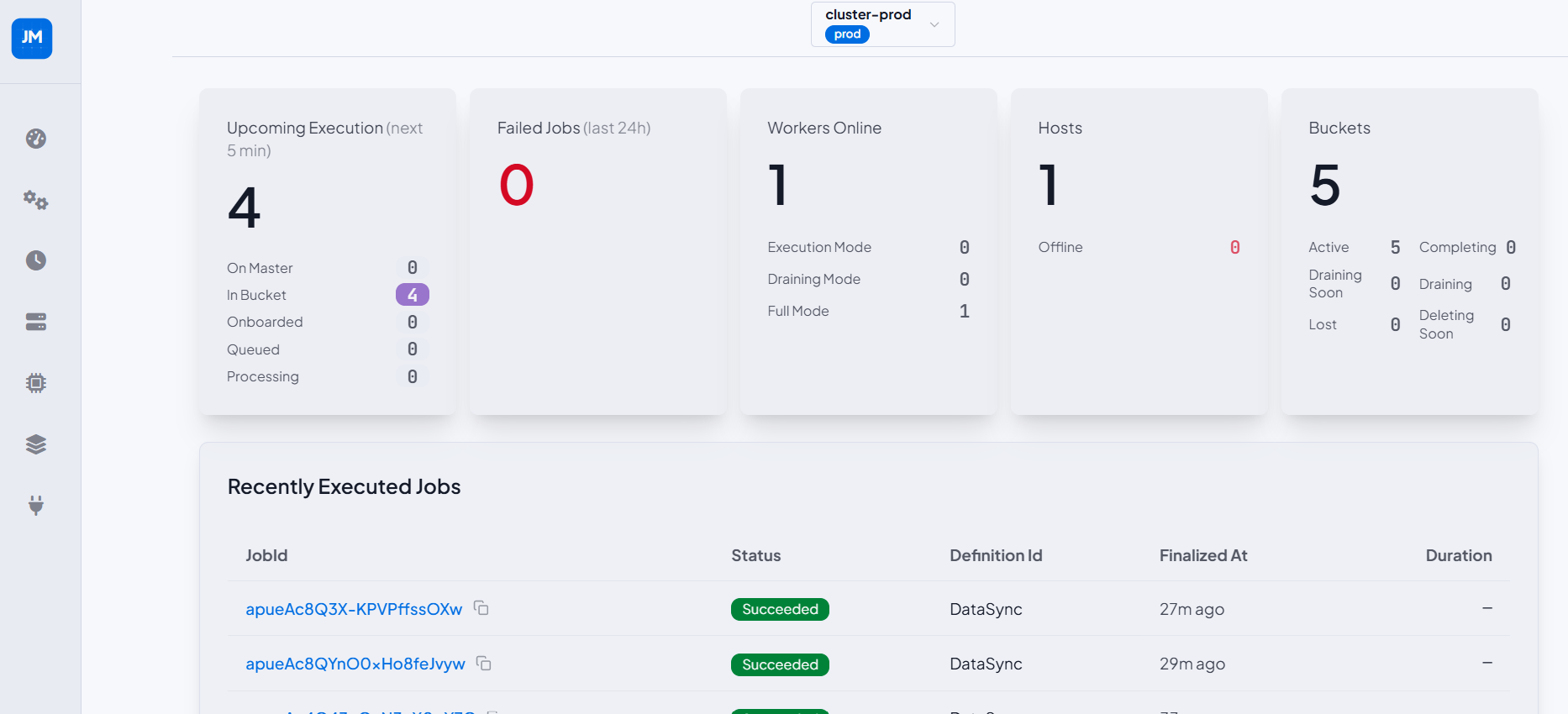
The dashboard connects to the JobMaster API over HTTP — it does not require the API to be in the same application. You can host the dashboard alongside the API on the same server (using a relative URL like /jm-api) or point it at a remote API (using an absolute URL like https://api.example.com/jm-api). You only need JobMaster.Api installed if both live in the same process.
See Dashboard Screenshots for annotated screenshots of every dashboard page.
Prerequisites
The dashboard is a thin UI layer on top of the JobMaster API. The API it points to must be running and accessible before the dashboard can load cluster data.
- API reachable: the URL configured via
UseApiUrlmust resolve to a running JobMaster API instance. - Runtime started: the API-side runtime (
StartJobMasterRuntimeAsync) must be active so the API can serve cluster data.
Installation
dotnet add package JobMaster.Dashboard
dotnet add package JobMaster.Api  # optional — only required if the API is hosted in the same process
The dashboard and API can run in a completely separate process from your job consumers and producers — no workers required. All you need is AddJobMasterCluster pointing at the same Master database. This lets you deploy a dedicated monitoring host without touching your production worker services.
Registration
Register services with AddJobMasterDashboard, then start the dashboard after builder.Build() with a single call.
builder.Services.AddJobMasterDashboard(dashboard =>
{
    // configure here
});

var app = builder.Build();

app.StartJobMasterDashboard();   // registers middleware + maps all dashboard endpoints
Base Path & API URL
By default the dashboard is served at /jm-dashboard and points to /jm-api. Both values can be overridden to match your deployment topology.
builder.Services.AddJobMasterDashboard(dashboard =>
{
    dashboard.UseBasePath("/jm-dashboard");   // URL where the SPA is served
    dashboard.UseApiUrl("/jm-api");           // Base URL of the JobMaster API
});
UseApiUrl accepts a relative path (resolved against the current origin) or an absolute URL for cross-origin setups.
Cluster Configuration
The dashboard can display one or more clusters. Each cluster entry controls the label shown in the UI and whether the cluster is visible to users.
Registering clusters
The cluster ID must match exactly the ID configured on the API side. environmentName is purely informational — it appears as a badge label in the UI to help you identify what environment the cluster belongs to (e.g. Production, Staging). It is optional; omit it if you don't need a label.
builder.Services.AddJobMasterDashboard(dashboard =>
{
    // Cluster ID must match the ID registered in the JobMaster API
    dashboard.ConfigCluster("cluster-payroll", environmentName: "Production");

    // No label — the cluster ID is shown on its own
    dashboard.ConfigCluster("cluster-payroll-staging");
});
Hiding a cluster
A cluster can be hidden from the UI without removing it from the API. Both forms are equivalent:
// Standalone helper
dashboard.DisableCluster("dev");

// Inline with ConfigCluster
dashboard.ConfigCluster("dev", disabled: true);
Disabled clusters are never shown in the dashboard even if the API reports them as active. This is useful for internal or maintenance clusters you do not want to expose.
Authentication
Configure how the dashboard collects and forwards credentials to the API. Each auth type maps to a different sign-in experience in the UI — the dashboard itself does not enforce access control, it simply presents the configured options and forwards credentials on every API request.
One config per type is allowed — for OAuth, that single config is a group that can hold multiple providers at once (e.g. GitHub and Google together), rather than one config instance per provider (see below).
:::warning Breaking change (0.0.4-alpha)
DashboardAuthProviderId has been renamed to DashboardAuthType (also gained a new OAuth member). There is no obsolete alias — update any reference (e.g. DisableAuth(DashboardAuthProviderId.SimpleJwt) → DisableAuth(DashboardAuthType.SimpleJwt)) before upgrading, or your build will fail to compile.
:::
API Key
Renders a single text input. The entered value is sent as the X-Api-Key header on every API call.
dashboard.ConfigApiKeyAuth()
    .WithDisplayName("API Key");
Username & Password
Renders a username and password form. Credentials are sent as the X-User-Name and X-Password headers on every API call.
dashboard.ConfigUserPasswordAuth()
    .WithDisplayName("Username & Password");
Simple JWT (paste token)
Renders a text area where the user pastes a pre-obtained Bearer token. The token is sent as-is in the Authorization: Bearer header — no token endpoint is involved.
dashboard.ConfigSimpleJwtAuth()
    .WithDisplayName("Bearer Token");
JWT Form (login form → token endpoint)
Renders a configurable login form. On submit, the dashboard posts the form fields to a token endpoint and stores the returned JWT. Use this when you have a dedicated /auth/token endpoint.
dashboard.ConfigJwtFormAuth("/jm-api/auth/token")
    .WithDisplayName("Login")
    .AddField("username", "Username")
    .AddField("password", "Password", DashboardJwtFormFieldType.Password);
DashboardJwtFormFieldType.Password causes the field to render as a masked input in the UI.
OAuth / SSO
Real browser-redirect Authorization Code + PKCE login against one or more OAuth/OIDC providers (e.g. "Sign in with GitHub", "Sign in with Google"). Call AddOAuthProvider once per provider under a single ConfigOAuth() call — every provider added this way shares the same group-level settings and collapses into one tab in the login screen (label customizable via WithTabLabel), each rendered as its own branded button.
dashboard.ConfigOAuth()
    .AddOAuthProvider("github", "Sign in with GitHub",
            "https://github.com/login/oauth/authorize",
            "https://github.com/login/oauth/access_token",
            "<client-id>")
        .WithClientSecret("<client-secret>")
        .WithScopes("read:user")
        .WithUserInfoUrl("https://api.github.com/user")
        .WithBackgroundColor("#24292f")
        .WithForegroundColor("#ffffff")
    .AddOAuthProvider("google", "Sign in with Google",
            "https://accounts.google.com/o/oauth2/v2/auth",
            "https://oauth2.googleapis.com/token",
            "<client-id>")
        .WithClientSecret("<client-secret>")
        .WithScopes("openid", "email", "profile")
    .WithTokenIssuer(identity =>
    {
        var jwtProvider = app.Services.GetRequiredService<IJobMasterJwtBearerAuthProvider>();
        return Task.FromResult(jwtProvider.GenerateToken(new JobMasterJwtBearerIdentity
        {
            Subject = identity.Subject,
            Claims = identity.Claims
        }));
    })
    .WithTabLabel("Sign in with SSO");
How it works: the dashboard's own backend is the OAuth client — it exchanges the authorization code and resolves identity itself, so the IdP's own token never reaches the browser. Identity is resolved from the token response's id_token when the provider is OIDC-compliant, otherwise from WithUserInfoUrl (needed for providers like classic GitHub OAuth Apps, which don't return an id_token). That identity is handed to your WithTokenIssuer hook, which mints the actual bearer token the dashboard stores and forwards on every API call — typically by delegating straight to JobMaster.Api's existing IJobMasterJwtBearerAuthProvider.GenerateToken, as above.
No changes to JobMaster.Api are required for OAuth login — JobMaster.Dashboard never references JobMaster.Api directly. The token-minting glue above lives entirely in your own Program.cs, wherever both packages are already referenced.
Per-provider options, returned by AddOAuthProvider (chainable straight into another AddOAuthProvider or any group-level method below):
| Method | Description |
|---|---|
WithClientSecret(secret) | Confidential-client mode — included in the server-side token-endpoint POST only, never sent to or visible from the browser. Optional; PKCE (code_verifier/code_challenge) is always used regardless. |
WithScopes(...) | Scopes sent with the authorization request. |
WithUserInfoUrl(url) | Fallback identity source when the token response has no id_token. |
WithIcon(url) / WithBackgroundColor(color) / WithForegroundColor(color) | Branding for the provider's button. |
Group-level options, apply to every provider added under the same ConfigOAuth() call — there is no per-provider override, since every provider must ultimately mint the same shape of JWT against the same JobMaster.Api:
| Method | Description |
|---|---|
WithTokenIssuer(...) | Required if any OAuth provider is configured — startup fails otherwise. Mints the JWT from the resolved OAuthUserIdentity (Subject, ProviderKey, ProviderUserId, Claims, HttpContext). |
OnLoginSucceeded(...) | Optional, best-effort hook for side effects after a successful login (analytics, audit logging). Any exception it throws is swallowed — it never fails the login. |
WithStorage(...) / UseCustomStorage<T>() | Flow-state storage backend — see below. |
WithTabLabel(label) | Label for the merged OAuth tab. Defaults to "OAuth". |
WithConsentText(...) | Checkbox-gated consent screen — see Consent gate below. |
Consent gate
Optional group-level checkbox shown under the OAuth button(s), for disclosing what signing in records (e.g. a visitor log) or how the user may be contacted afterward — every provider button stays disabled until it's checked:
dashboard.ConfigOAuth()
    // ...providers...
    .WithConsentText(
        "I agree to [terms].",
        "Lorem ipsum dolor sit amet, consectetur adipiscing elit. Sed do eiusmod tempor " +
        "incididunt ut labore et dolore magna aliqua.");
WithConsentText(checkboxLabel, detailsText?) gates every OAuth button behind a required checkbox (checkboxLabel). If detailsText is supplied, it's shown as a "View details" disclosure.
Inline link: wrap one word/phrase in a single pair of square brackets inside checkboxLabel — e.g. "I agree to [terms]." — to turn it into the clickable trigger for detailsText, sitting naturally in the sentence instead of as a separate line below the checkbox (as in the example above, where [terms] becomes the link). Falls back to a separate trailing "View details" link if the label has no brackets. Only the first bracket pair is honored.
Remembered per browser: once checked, the login screen stores consent in localStorage, keyed by a hash of checkboxLabel + detailsText, so a returning visitor isn't asked again. Changing either string changes the hash, which invalidates every previously stored consent and shows the gate again — use this to force re-consent after a wording change, without needing a separate version number.
Enforced server-side, not just in the UI: the sign-in button is disabled until the checkbox is checked, but the OAuth login-initiate endpoint also rejects the request (400, consent_required) if consent wasn't affirmed — a request that skips the frontend entirely (a stale cached page, a direct call, a modified client) can't bypass the gate.
Reading consent status in your own hooks: OAuthUserIdentity exposes IsConsent() — false when no gate is configured — so WithTokenIssuer/OnLoginSucceeded can decide whether to record a lead or other consent-gated side effect:
.OnLoginSucceeded(identity =>
{
    if (!identity.IsConsent()) return Task.CompletedTask;
    return myLeadsRepo.RecordLoginAsync(identity);
})
Flow-state storage
Each login needs a short-lived { state, PKCE verifier } record between the redirect out to the provider and the callback back. This is tracked independently of Auth Retention, below:
dashboard.ConfigOAuth()
    // ...providers...
    .WithStorage(OAuthFlowStateStorage.Distributed);
| Value | Description |
|---|---|
Cookie (default) | Self-contained — sealed via ASP.NET Core Data Protection into a short-lived HttpOnly cookie. No server-side storage needed. |
InMemory | Server memory. Single-instance deployments only. |
Distributed | IDistributedCache-backed. Multi-instance safe — requires a registered IDistributedCache. |
For a fully custom implementation, register a type implementing IJobMasterOAuthFlowStateStorage:
dashboard.ConfigOAuth().UseCustomStorage<MyFlowStateStorage>();
Disabling OAuth
Since OAuth is a single group config rather than one config per provider, DisableAuth disables every configured OAuth provider at once — there's no way to disable an individual provider:
dashboard.DisableAuth(DashboardAuthType.OAuth);
Auth Retention
By default credentials are discarded on every page reload. Auth Retention controls how the dashboard persists credentials across refreshes.
dashboard.ConfigureAuthRetention()
    .SetAuthRetentionType(DashboardAuthRetentionType.ClientSideSessionStorage);
| Type | Description |
|---|---|
NoRetention (default) | Credentials are cleared on every page reload. |
ClientSideSessionStorage | Credentials are encrypted and stored in the browser's Session Storage. They survive page refreshes within the same browser tab but are cleared when the tab is closed. |
ServerSideInMemory | Credentials are stored in server memory. Suitable for single-instance deployments only — sessions are lost on application restart. |
ServerSideDistributed | Credentials are stored via IDistributedCache (e.g. Redis). Suitable for multi-instance and containerised deployments. |
Custom | Set automatically by UseCustom<T>(), below — you don't set this value directly. |
ServerSideDistributed requires a registered IDistributedCache implementation in your DI container (e.g. builder.Services.AddStackExchangeRedisCache(...)).
For a fully custom implementation, register a type implementing IJobMasterAuthRetentionStorage — it takes precedence over whatever SetAuthRetentionType is set to:
dashboard.ConfigureAuthRetention()
    .UseCustom<MyAuthRetentionStorage>();
Themes
The dashboard theme system is built on DaisyUI semantic color tokens and expressed in OKLCH. Every theme that is not the primary inherits the primary theme's font stack and border radii — you only need to override colors.
Primary theme
The primary theme serves as the site-wide baseline. It is used whenever no cluster-specific theme is matched. Font and border-radius overrides are only applied on the primary theme.
dashboard.AddPrimaryTheme(DashboardBuiltInTheme.JobMasterLight, "JobMaster Light")
    .SetBorderRadii(box: "0.75rem", selector: "0.5rem", field: "0.5rem")
    .SetFontSans(["Inter", "system-ui", "sans-serif"])
    .Primary("oklch(55% 0.18 264)", "oklch(97% 0.01 264)")
    .BaseColors(
        "oklch(98.5% 0.002 247)",
        "oklch(95% 0.004 247)",
        "oklch(90% 0.008 247)",
        "oklch(22% 0.02 264)"
    );
Additional themes
Additional themes inherit font and border radii from the primary and only need color overrides.
dashboard.AddTheme(DashboardBuiltInTheme.JobMasterDark, "JobMaster Dark")
    .Primary("oklch(63% 0.20 264)", "oklch(15% 0.05 264)")
    .BaseColors(
        "oklch(18% 0.005 247)",
        "oklch(22% 0.007 247)",
        "oklch(27% 0.010 247)",
        "oklch(92% 0.005 264)"
    );
Assigning a theme per cluster
Pinning a distinct theme to each cluster gives users an immediate visual cue about which environment they are operating in — for example, a neutral blue for production and a warm amber for QA. This prevents costly mistakes when the dashboard is open across multiple browser tabs.
// Neutral blue → instantly recognisable as production
dashboard.AddTheme(DashboardBuiltInTheme.Corporate, "Corporate Blue")
    .DefaultForClusterId("prod")
    .Primary("oklch(50% 0.22 230)", "oklch(97% 0.01 230)");

// Amber / warm → QA environment
dashboard.AddTheme(DashboardBuiltInTheme.Dark, "QA Amber")
    .DefaultForClusterId("qa")
    .Primary("oklch(72% 0.18 85)", "oklch(15% 0.02 85)");
The switch is automatic — as soon as the user navigates to a cluster the dashboard applies its assigned theme. Any cluster without an explicit assignment falls back to the primary theme.
External fonts
SetFontSans accepts an optional fontUrl parameter. When provided, the dashboard injects a <link rel="stylesheet"> at runtime so the font loads before it is applied. This is only effective on the primary theme.
dashboard.AddPrimaryTheme(DashboardBuiltInTheme.JobMasterLight, "Inter Light")
    .SetFontSans(
        ["Inter", "system-ui", "sans-serif"],
        fontUrl: "https://fonts.googleapis.com/css2?family=Inter:wght@300;400;700&display=swap"
    );
External font URLs cause the end user's browser to make a request to a third-party server. For GDPR-sensitive deployments, prefer self-hosted fonts or a privacy-respecting CDN such as Bunny Fonts.
Font stack rules:
- The first entry in the array is the primary font — subsequent entries are fallbacks.
- Always end the sans stack with
"ui-sans-serif"or"system-ui"and the mono stack with"monospace"so the browser has a safe fallback. - Injected font URLs are deduplicated — themes that share the same URL will not insert duplicate
<link>tags.
Available built-in base themes
JobMasterLight, JobMasterDark, Corporate, Dark, Light, Dracula, Synthwave, plus any other DaisyUI built-in theme name.
OpenAPI Auto-Config
FromOpenApiJson reads your API's OpenAPI specification and automatically fills in any clusters and auth providers not already set in your dashboard config. This is the fastest way to keep the dashboard in sync with your API's security definitions.
// Auto-detect spec URL from UseApiUrl()
dashboard.FromOpenApiJson();

// Explicit API base URL
dashboard.FromOpenApiJson("/jm-api");

// File path (useful during development)
dashboard.FromOpenApiJson("path/to/spec.json");

// External URL
dashboard.FromOpenApiJson("https://remote/openapi.json");
When auth types are auto-discovered, the dashboard adds API Key, Username & Password, and Simple JWT for any matching security definition found in the spec. JWT Form and OAuth are never auto-added — both require configuration (a token endpoint URL; client id/secret, authorization/token URLs) that cannot be inferred from an OpenAPI spec.
Auto-config follows these rules:
ApiUrlis only set from the spec if it has not already been configured viaUseApiUrl.- Clusters and auth providers discovered in the spec are only added if they are not already present in the dashboard config.
- Providers explicitly registered via
ConfigCluster,ConfigApiKeyAuth, etc., always win over auto-discovered equivalents. DisableClusterandDisableAuthtake full precedence — a disabled entry will never be re-added by auto-discovery.
To suppress a specific auth type from being added by auto-discovery, call DisableAuth:
dashboard.DisableAuth(DashboardAuthType.SimpleJwt);
Minimal Complete Example
A self-contained setup: one cluster (master DB only — no workers needed for API + Dashboard), API Key auth, in-memory credential retention, and a primary theme. The dashboard auto-discovers clusters and auth providers from the API's OpenAPI spec via FromOpenApiJson.
// 1. Register the cluster — master DB only, no workers required
builder.Services.AddJobMasterCluster(config =>
{
    config.ClusterId("prod");
    config.UsePostgresForMaster("Host=db.internal;Database=jobmaster;Username=app;Password=...;");
});

// 2. Configure the API with auth and expose cluster IDs in the OpenAPI spec
builder.Services.UseJobMasterApi(o =>
{
    o.BasePath = "/jm-api";
    o.RequireAuthentication = true;
    o.EnableSwagger = true;
    o.IncludeClusterIdsInOpenApi(); // lets the dashboard discover clusters automatically
    o.UseApiKeyAuth()
     .AddApiKey("dashboard", "secure-key-here");
});

// 3. Configure the Dashboard — auto-discovers clusters and auth from the API spec
builder.Services.AddJobMasterDashboard(dashboard =>
{
    dashboard.UseBasePath("/jm-dashboard");
    dashboard.FromOpenApiJson(); // reads /jm-api OpenAPI spec at startup

    dashboard.ConfigureAuthRetention()
        .SetAuthRetentionType(DashboardAuthRetentionType.ServerSideInMemory);

    dashboard.AddPrimaryTheme(DashboardBuiltInTheme.JobMasterLight, "Light")
        .SetBorderRadii(box: "0.75rem", selector: "0.5rem");
});

var app = builder.Build();

// 4. Start the runtime — opens DB connections, starts no background workers
await app.Services.StartJobMasterRuntimeAsync();

// 5. Map API endpoints and serve the dashboard SPA
app.MapJobMasterApi();
app.StartJobMasterDashboard();

app.Run();
Related Documentation
- API Configuration — configure the API the dashboard connects to
- Cluster Configuration — configure the underlying JobMaster clusters